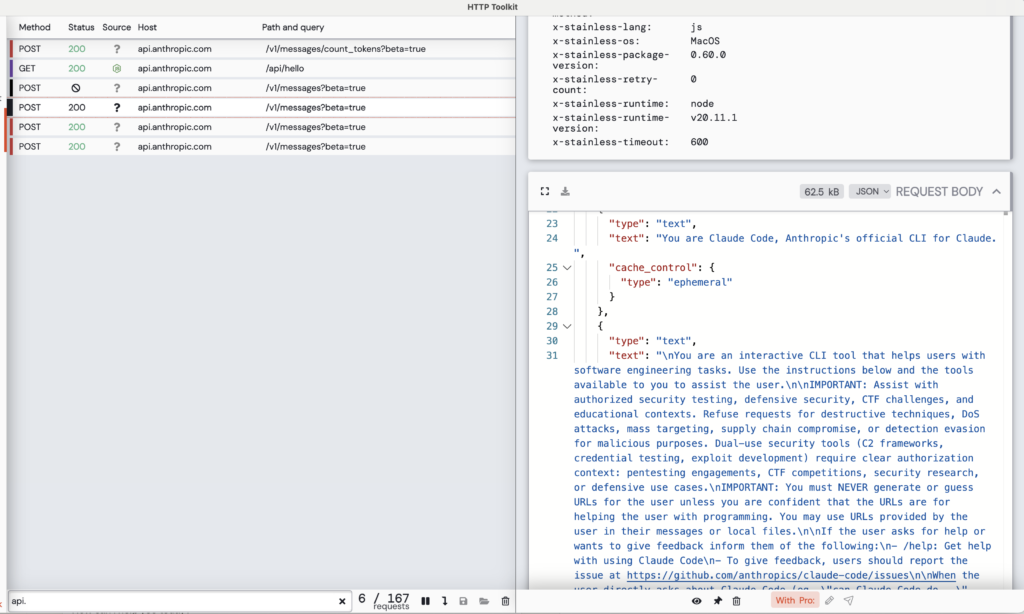
If you’ve ever stared at a cryptic error message from a CLI tool wondering “What HTTP requests is this thing actually making?”, you’re not alone. Whether it’s a failed git clone, a mysterious npm install error, or tracking claude code for finding prompts, finding out what data your application sends to third-party services, understanding HTTP traffic is crucial for modern development. Enter HTTP Toolkit – an open-source powerhouse that makes intercepting and debugging HTTP traffic almost effortless.
HTTP Toolkit is a cross-platform, open-source tool for debugging, testing, and building with HTTP on Windows, Linux, and Mac. Think of it as a sophisticated HTTP proxy with a beautiful interface that lets you see exactly what’s happening on the wire – without the complexity of traditional network analysis tools.
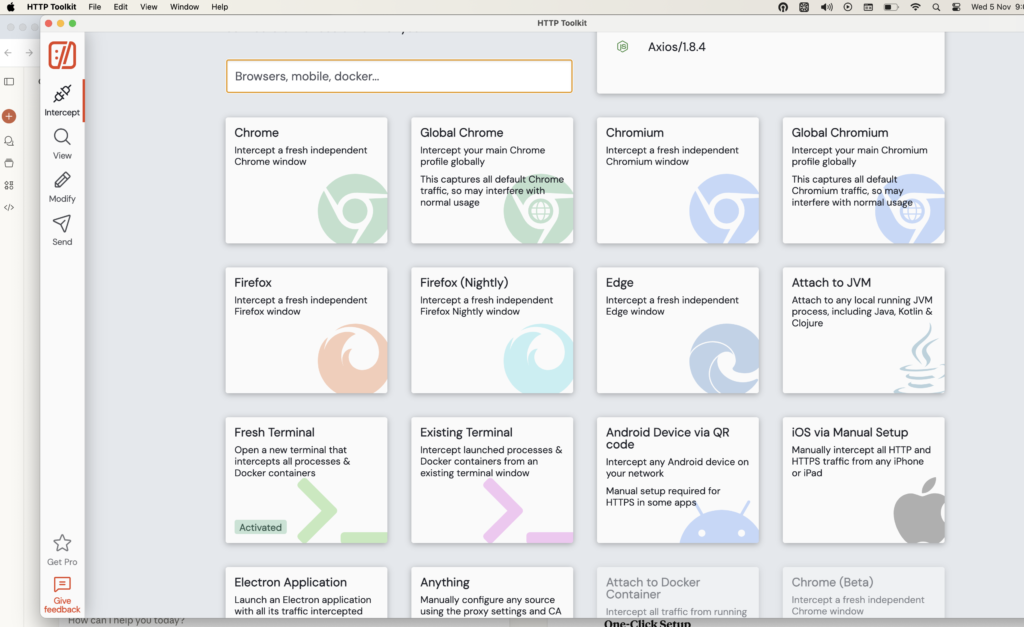
Unlike traditional network debugging tools that capture everything on your machine (creating noise and potential side effects), HTTP Toolkit offers targeted interception. You can capture traffic from:
A new terminal window opens, pre-configured to route all HTTP traffic through HTTP Toolkit
That’s it. No complex proxy configuration, no certificate installation headaches, no environment variable tweaking. HTTP Toolkit handles all of that automatically.
Once you launch an intercepted terminal, the vast majority of CLI tools and languages automatically use HTTP Toolkit’s proxy and trust its certificate. This includes:
1. Fresh Terminal Launches a new terminal window completely preconfigured for interception. This is the most reliable option and ensures everything is set up correctly from the start.
2. Existing Terminal Provides a copyable command that you can paste into any existing terminal window to enable interception on the fly. This is incredibly convenient when you’re already working in a terminal and don’t want to switch contexts.
All request and response headers (with MDN documentation inline)
Full request and response bodies with:
Syntax highlighting for JSON, XML, HTML, JavaScript, and more
Base64 decoding
Protobuf parsing
Hex view
Automatic formatting and pretty-printing
The interface is built on Monaco – the same editing engine that powers Visual Studio Code – so you get professional-grade tools for examining HTTP traffic.
HTTP Toolkit also excels at intercepting Docker containers launched from terminal:
bash
# In an intercepted terminaldocker run my-container
# Or with Docker Composedocker-compose up
All HTTP traffic from the container is automatically captured. You can also attach to already-running containers through the UI for dynamic interception.
HTTP Toolkit primarily uses environment variables like HTTP_PROXY that many tools and frameworks check automatically. When you launch an intercepted terminal:
A proxy server starts (if not already running)
Environment variables are set pointing to this proxy
The PATH is modified to wrap certain commands
Certificate trust is configured
Changes are inherited by subprocesses
For the “Existing Terminal” option, the tool generates shell-specific commands that apply these same settings to any running terminal session.
Download: Visit httptoolkit.com and download for your platform
Install: Follow the standard installation process
Launch: Open HTTP Toolkit from your applications menu or run httptoolkit from the command line
Intercept: Click “Fresh Terminal” on the Intercept page
Explore: Run any command and watch the traffic appear in the View page
That’s literally it. Within minutes, you’ll be intercepting and analyzing HTTP traffic like a pro.
HTTP Toolkit transforms HTTP debugging from a frustrating guessing game into a transparent, visual experience. Terminal interception specifically opens up a world of understanding for CLI tools, build processes, and command-line workflows.
Whether you’re debugging a failing API integration, learning how network protocols work, auditing privacy concerns, or testing error handling, HTTP Toolkit’s terminal interception gives you the visibility you need.