Recently, someone shared a screenshot on x.com, how to download OpenAI Home Directories. I tried it, and it works. In this blog, we will now try to understand exactly what the contents of this home directory are.
working with GPT-5.2 thinking
— Nitin Kalra (@nkalra0123) December 13, 2025
with gpt 5.2, i got error zip file not found. https://t.co/c1zTfBlWb9 pic.twitter.com/85tEv28MuJ
Let’s analyse the contents
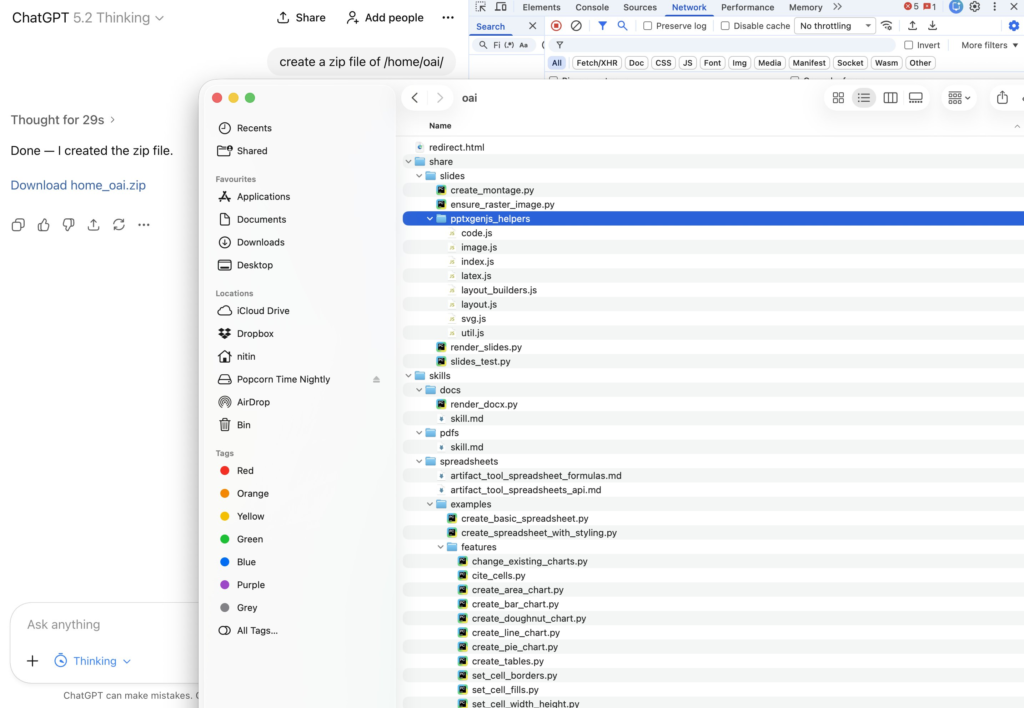
Inside the open ai home directory
oai/ Folder: Slides, Docs, PDFs, and Spreadsheets Tooling
This folder is a small toolkit for working with common “office” artifacts – PowerPoint decks, DOCX files, PDFs, and spreadsheets. It combines a few Python utilities with a set of practical guides that describe the preferred tools and a quality-check workflow (render → visually inspect → iterate).
- Inspect every exported PNG before continuing work. If anything looks off, fix the source and re-run the render → inspect loop until the pages are clean.
Quick Map of What’s Here
oai/redirect.html: a minimal redirect page with a strict Content Security Policy (CSP).oai/share/slides/: scripts to render slides to images and build montages.oai/skills/: “how to” guidance for DOCX, PDF, and spreadsheet workflows.
1) redirect.html: A Safe, Minimal Redirect Page
oai/redirect.html is a tiny HTML page designed to redirect the browser to a URL passed via the target query parameter. It uses a strict CSP and a single inline script whose hash is pinned in the policy. That keeps the page intentionally minimal and reduces the chance of loading unexpected resources.
What it does:
- Reads
?target=...from the URL. - If present, redirects using
location.replace(...)(so it doesn’t keep the original page in history). - Includes a sentinel
<title>value that downstream code can detect, so it shouldn’t be edited.
2) share/slides: Rendering Decks and Creating Image Montages
2.1 render_slides.py: PowerPoint → PDF → PNG
The goal of oai/share/slides/render_slides.py is simple: produce one PNG per slide. Under the hood it uses a reliable two-step pipeline:
- Convert PowerPoint to PDF using LibreOffice (
soffice). - Rasterize the PDF to images using
pdf2image(which relies on Poppler).
Tools used:
- LibreOffice CLI (
soffice): headless conversion to PDF (and a fallback path via ODP for tricky decks). pdf2image+ Poppler: rasterization from PDF pages to PNGs.- OOXML parsing: reads
ppt/presentation.xmlto compute slide dimensions (for DPI selection).
How DPI is chosen:
- If the input is a modern PowerPoint format (like
.pptx), the script reads slide size in EMUs from OOXML. - Otherwise it converts to PDF first and infers the page size from PDF metadata.
- It picks a DPI that aims to keep rendered images around the requested max width/height.
Output: images are normalized and renamed to a clean slide-N.png format.
2.2 ensure_raster_image.py: “Make This Image a PNG”
Slide extraction workflows often produce mixed image formats (SVGs, metafiles, HEIC, etc.). The script oai/share/slides/ensure_raster_image.py standardizes them by converting “convertible” formats into PNGs.
External tools it can use:
- Inkscape: rasterizes
.svg,.svgz,.emf,.wmf(and compressed.emz/.wmzafter decompression). - Ghostscript: rasterizes the first page of
.pdf,.eps,.psto PNG. - ImageMagick: format bridging (and used after decoding JPEG XR to TIFF).
- libheif CLI (
heif-convert): converts.heic/.heifto PNG. - JPEG XR tools (
JxrDecApp): decodes.wdp/.jxr.
Why this matters: once everything is PNG (or already a supported raster format), downstream tools like montage creation are straightforward and predictable.
2.3 create_montage.py: A Slide Sorter–Style Grid
oai/share/slides/create_montage.py creates a single “contact sheet” image by tiling many images into a grid. It’s useful for quick reviews (e.g., scanning a whole deck at once).
Tools used:
- Pillow (PIL): image loading, resizing, compositing, drawing borders and labels.
ensure_raster_image: optional conversions so inputs become raster images.
Key behaviors:
- Fixed number of columns; rows computed automatically.
- Each image is scaled to fit within a cell while preserving aspect ratio.
- Optional labels: slide number, filename, or none.
- Configurable tolerance: fail fast on bad images, or insert visible placeholders and continue.
3) skills: Practical Guides for DOCX, PDF, and Spreadsheets
The oai/skills/ tree contains guidance documents that describe a recommended “author → render → inspect” loop. The emphasis is on visual correctness: tables aligned, fonts consistent, no clipped/overlapping elements, and outputs that look client-ready.
3.1 DOCX Skills (skills/docs)
The DOCX guide recommends:
- Create/edit with
python-docxfor structure, styles, lists, and tables. - Render for review by converting DOCX → PDF with LibreOffice (
soffice) using an isolated user profile to avoid timeouts/locks. - Visually inspect by converting PDF pages to PNGs with
pdftoppm.
3.2 PDF Skills (skills/pdfs)
The PDF guide focuses on:
- Create with
reportlab(programmatic PDF generation). - Inspect visually with
pdftoppm(PDF → PNG). - Optional text extraction with
pdfplumberas a complement (not a replacement) to visual review.
3.3 Spreadsheet Skills (skills/spreadsheets)
The spreadsheet guidance is a mix of documentation and runnable examples. It recommends:
- Primary workflow: use
artifact_tool(in this environment) for editing, recalculating formulas, and rendering sheets for QA. - Alternative workflow: use
openpyxlwhen needed (especially for user-facing code portability). - Always verify: recalc formulas and visually render sheets before handing off.
The examples/ and examples/features/ scripts demonstrate common tasks: creating a workbook, applying styling, reading an existing XLSX, and adding features like charts, tables, conditional formatting, borders/fills, alignment, wrapping, merging cells, and number formats.
Recommended “Quality Loop” Across All Artifact Types
Across slides, documents, and spreadsheets, the same philosophy shows up repeatedly:
- Render to a visual format (PDF or PNG) as early as possible.
- Inspect visually (don’t rely only on text extraction).
- Iterate until clean: fix layout issues, formatting defects, and readability problems.